Using Business Objects with ODBC
Note: At this time, the functionality described in this topic only applies to simple attributes and is read only.
The CygNet Business Object Builder utility may be used in conjunction with ODBC to expose business objects as tables in a virtual database. ODBC is used to create a relational view of disparate data where business objects and their attributes become rows and columns in a table. Such tables of abstracted data consolidate information from across many CygNet sites and services, representing it in ways meaningful within your business data model. This functionality is supported by the 32-bit and the 64-bit CygNet ODBC drivers.
For example, you may configure a business object called WELL that represents an entity familiar to you and your business data model. WELL may be assigned a number of relevant attributes. The CygNet Business Object Builder utility enables you to use that business object's mappings to draw from multiple CygNet sites and services at once, viewing it in a federated virtual database instead of multiple, disparate databases. This single federated view of CygNet data may then be output to database applications that support ODBC, like Microsoft Access, Microsoft Excel, or TIBCO Spotfire for useful business purposes.
See also ODBC.
Object Historical Tables
An important feature of the functionality described above are virtual historical tables. For every object exposed as a table in your virtual database, dynamic historical tables are created for the display of historical point values. The table types are History, DailyRecord, HourlyRecord, and FifteenMinutelyRecord. The tables are made up of rows representing historical values for objects at a given time. The columns include the record timestamp, object ID(s), and historical fields. Timestamps in ODBC are strongly typed. Refer to the ODBC Datetime Format. The History table is only exposed for objects that are mapped to exactly one UDC.
Each historical table type defines the blocks of time in which data for a time range displays. For example, you may use SQL to specify the retrieval of historical values over the course of three days in hourly blocks of time. Be aware that if you use the SQL SELECT * command to select all data for one or more object historical tables, the amount of data returned might be very large. To avoid retrieving too much data at once, write queries that filter based on object ID and/or timestamp(s). For example, the SQL sample below efficiently returns only the requested data:
|
SELECT * FROM MeterHourlyRecord WHERE ID = '008450' AND timestamp > {ts '2023-12-06 04:00:00.000'} AND timestamp < {ts '2023-12-08 04:00:00.000'} |
In the case of each of the three historical table types, the most recent value reported for a given object within a given block of time (i.e., the row) is selected for the column value. For instance, if the most recent value for an hourly block that spans 1:00pm - 2:00pm was timestamped at 1:56pm, the value that corresponds to the timestamp 1:56pm is the value reported for the hour 1:00pm - 2:00pm.
Exposing Business Objects as ODBC Tables
Follow these steps to federate CygNet data into a virtual ODBC database:
- Create your business objects package.
- Install and register the relevant files.
- Specify the business object package to be used in a data source.
- Confirm your virtual tables are successfully created.
- Open and edit your tables in a common database application.
1. Configure Your Business Objects Package
This CygNet Help topic's procedures assume that you have preexisting, properly configured business objects and at least one package. See Business Object Package Files.
2. Install and Register the Relevant Files
- Obtain, install, and register a new license file that has the CygNet Business Object - ODBC token enabled.
- If you have not done so already, install and register the appropriate CygNet ODBC driver. See Installing the CygNet ODBC Driver.
3. Specify the Business Object Package to Be Used in a Data Source
- Using Windows Explorer, locate and run the ODBC Administrator utility (odbcad32.exe).
- If your operating system is 32 bit, odbcad32.exe is in the Windows\System32 directory.
- If your operating system is 64 bit, odbcad32.exe is in the Windows\SysWOW64 directory.

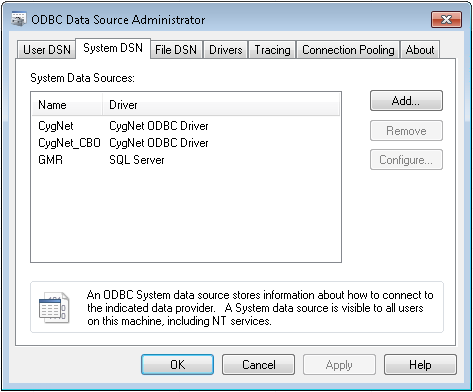
- When the odbcad32.exe utility opens, click the System DSN tab, select CygNet_CBO, then click Configure.… If CygNet_CBO does not appear in the Name column as a system data source, you have not properly installed and registered the appropriate CygNet ODBC driver.
|
System DSN |
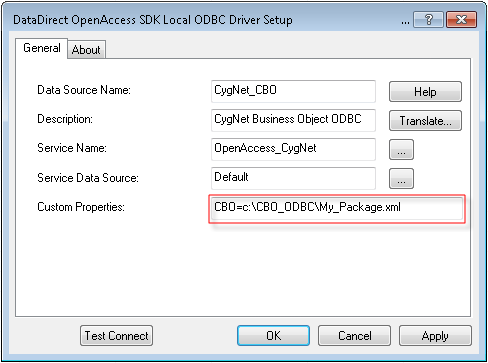
- On the General page of the DataDirect OpenAccess SDK Local ODBC Driver Setup dialog box, type a data source name of your choosing and enter a path to the relevant business object package file in the Custom Properties box. The path can be to a Windows storage location or to a CygNet Blob storage location.
|
Custom Properties |
- Once you've specified the path to your business object package, click OK.
4. Confirm Your Virtual Tables Are Successfully Created
- Using Windows Explorer, locate and run the DataDirect OpenAccess SDK Interactive SQL ODBC utility (ODBCISQL.exe). It is located by default in the following directory: CygNet\Support\ODBC. See Installing the ODBC Driver for more information.
- Connect to your business object package. Use the following SQL command to do so:
|
CONNECT cygnet_cbo |
- View all of the federated tables; ensure that each table corresponds to a business object in the relevant package. You may use the following SQL commands to do so:
|
SELECT table_name FROM oa_tables |
OR
|
SELECT * FROM oa_tables |
- View tables (i.e., objects and attributes) on a table-by-table basis. You may use the following SQL command to do so:
|
SELECT * FROM objectname |
- Further refine your SQL actions to suit your needs.
Note: Timestamps in ODBC are strongly typed as are datetime data types for columns where the corresponding business object attribute is mapped to the PointTimestamp attribute. Refer to the ODBC Datetime Format.
Example
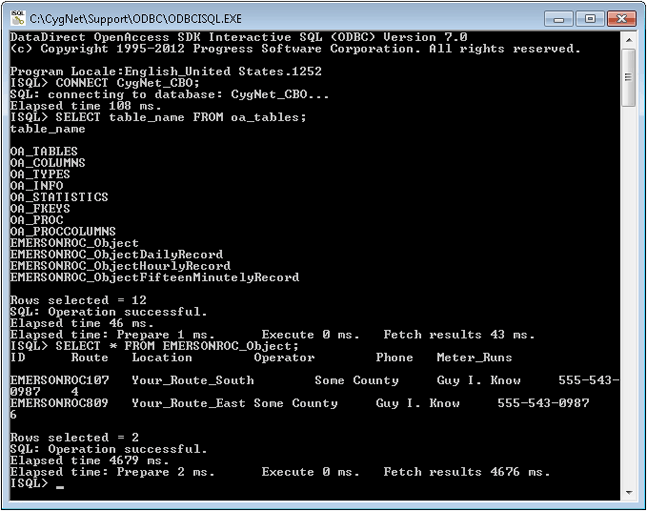
A simple queried table might look like this in the DataDirect OpenAccess SDK Interactive SQL ODBC utility:
|
Queried Table Example |
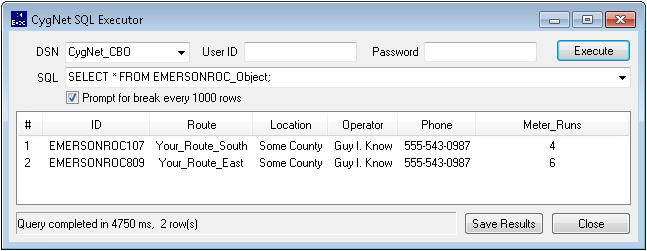
The same simple table might look like this in the CygNet SQL Executor Application (SqlExecutor.exe):
|
CygNet SQL Executor Table Example |
5. Open and Edit Your Tables in a Common Database Application
After you have performed steps 1 - 4 above, you may display and interact with the data from your federated database in any of a number of common database applications, like Microsoft Access, Microsoft Excel, or TIBCO Spotfire. Exactly how you access the ODBC data source varies from application to application.
Example
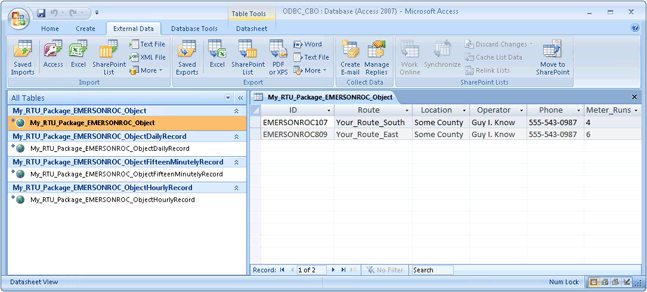
The simple example tables from step 4 above might look like this in Microsoft Access:
|
Microsoft Access Table Example |